## 🗄️ Database Configuration Dehasher supports two database storage options: 1. **Default Path** (default): Stores the database at `~/.local/share/Dehasher/db/dehashed.sqlite` 2. **Local Path**: Stores the database in the current directory as `./dehasher.sqlite` The **Local Path** option allows for separate databases for different projects or engagements. To configure the database location: ```bash # Use local database in current directory ./dehasher set-local-db true # Use default database path ./dehasher set-local-db false ```
## 🔍 Crafting Queries ### Simple Query Dehasher can be used simply for example to query for credentials matching a given email domain. ``` go # Provide credentials for emails matching @target.com dehasher -k ddq
## 🌐 WhoIs Lookups Dehasher supports WHOIS lookups, history searches, reverse WHOIS searches, IP lookups, MX lookups, NS lookups, and subdomain scans. The WhoIs Lookups require a separate API Credit from the Dehashed API. ### Domain Lookup ```bash # Perform a WHOIS lookup for example.com dehasher whois -d example.com ``` ### History Lookup History Lookups require 25 credits. This is a Dehashed API limitation. ```bash # Perform a WHOIS history search for example.com dehasher whois -d example.com -H ``` ### Reverse WHOIS Lookup ```bash # Perform a reverse WHOIS lookup for example.com dehasher whois -I example.com ``` ### IP Lookup ```bash # Perform a reverse IP lookup for 8.8.8.8 dehasher whois -i 8.8.8.8 ``` ### MX Lookup ```bash # Perform a reverse MX lookup for google.com dehasher whois -m google.com ``` ### NS Lookup ```bash # Perform a reverse NS lookup for google.com dehasher whois -n google.com ``` ### Subdomain Scan ```bash # Perform a WHOIS subdomain scan for google.com dehasher whois -d google.com -s ```
## 📊 Database Querying Dehasher stores query results in a local database. This database can be queried for previous results. This database also includes WhoIs Information and Subdomain Scan results, but does **not** include historical lookups. ## Simple Query 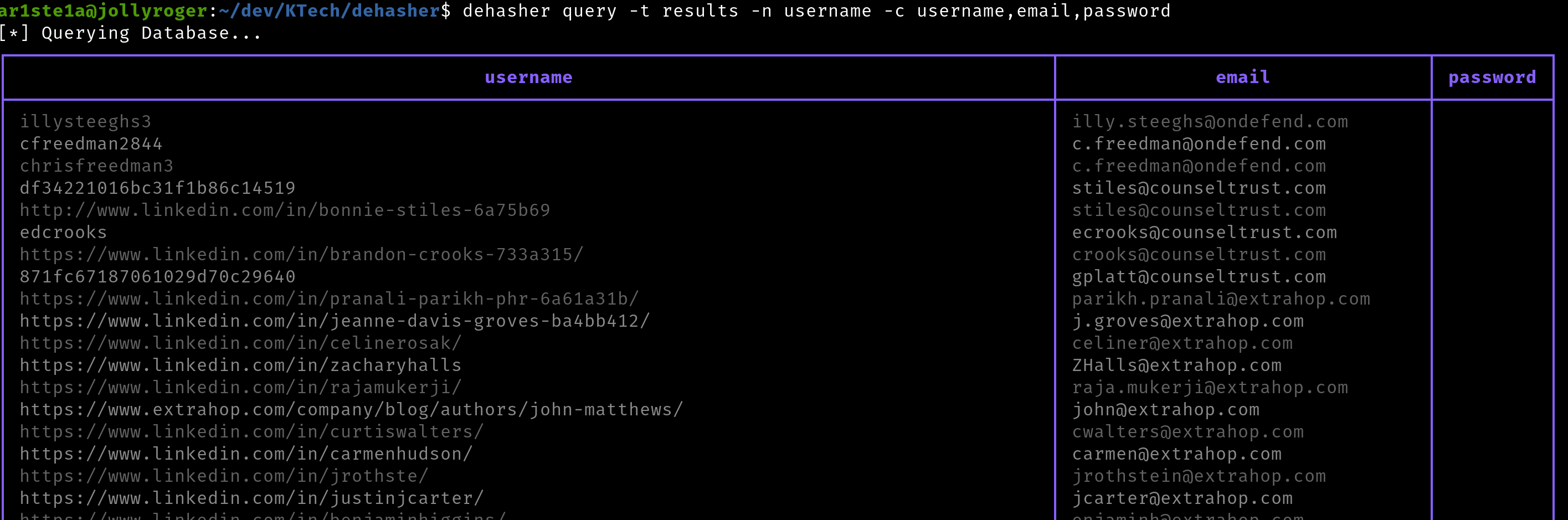 Dehasher supports querying the database for previous results. This is useful for when you want to query for specific information. ```bash # Query the database for all results containing the word 'admin' in the username dehasher query -t results -q "username LIKE '%admin%'" ``` ## Raw SQL Queries 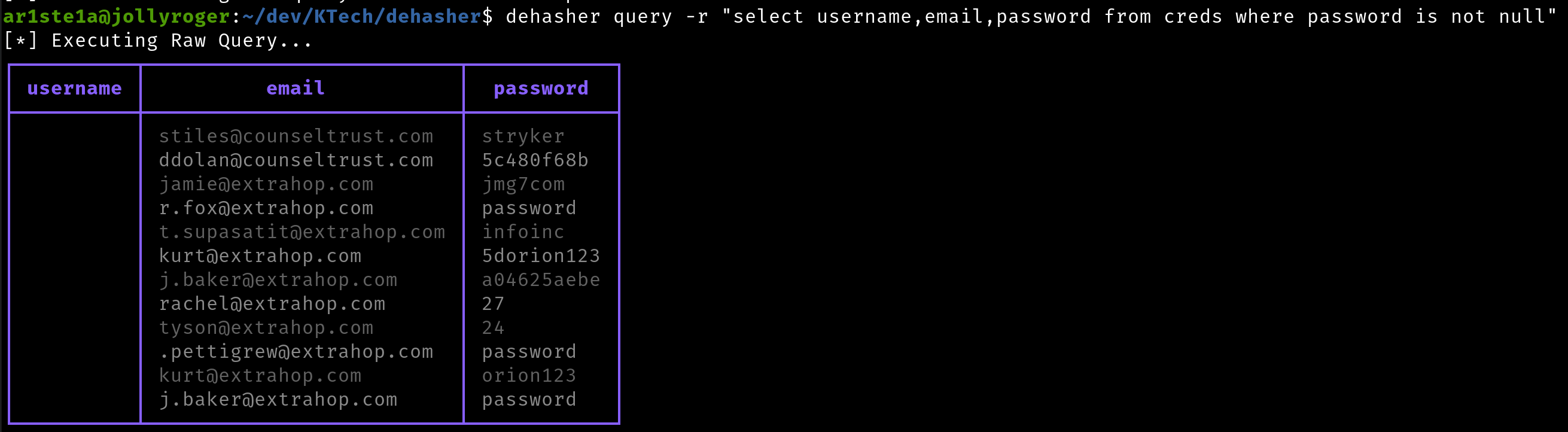 Dehasher also supports raw SQL queries. This is useful for when you want to query for specific information. ```bash # Query the database for all results containing the word 'admin' in the username dehasher query -r "SELECT * FROM results WHERE username LIKE '%admin%'" ``` ## Query Options Dehasher supports a number of query options. These options can be used to filter the results of a query. ```bash # Query the database for all results containing the word 'admin' in the username dehasher query -t results -q "username LIKE '%admin%'" -n username,email,password ``` ## Listing Tables and Columns Dehasher supports listing all available tables and columns. This is useful for when you want to query for specific information. ```bash # List all available tables and columns dehasher query -a ``` The current tables available for query are: - results - creds - whois - subdomains - history - runs --- # Exporting Results Dehasher supports exporting results to a file. This is useful for when you want to requery for specific information without touching the Dehashed API. The export subcommand supports all the same options as the query subcommand. The export subcommand also supports file naming and output format control. ```bash # Export all results containing the word 'admin' in the username to a text file dehasher export -t results -q "username LIKE '%admin%'" -o admins_file -f txt ``` ## 🐛 Debugging Dehasher uses the `zap` logging library for logging. The logs are stored in `~/.local/share/Dehasher/logs`. The logs can be easily queried from the Dehasher CLI. ```bash # Show the last 10 logs dehasher logs -l 10 # Show logs from the last 24 hours dehasher logs -s "24 hours ago" # Show logs from the last 24 hours with a severity of error or fatal dehasher logs -s "24 hours ago" -v error,fatal ``` ## 🎉 Sample Run ```bash ar1ste1a@kali:~$ dehasher api -D
